XPS Driver for Canon PIXMA iP7240, iP7250 printers
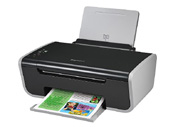
XPS Driver for Canon PIXMA iP7240, iP7250 printers download page. This page shows XPS Driver for Canon PIXMA iP7240, iP7250 printers information. XPS Driver for Canon PIXMA iP7240, iP7250 printers file include driver version 5.60a for Canon iP7200 series XPS device. If you want to find another driver for Canon iP7200 series XPS device click here. If you not found the necessary driver you can use site search. All download links are listed below on page. To start download file, click green «download» button on page below.
- Hardware IDs
- Canon iP7200 series XPS
- XPS Driver for Canon PIXMA iP7240, iP7250 printers
To start the download, select one of the servers and click "download"
|
|||
|
Version, Date:
|
5.60a, 16.10.2013
|
||
|
Operation Systems:
|
Windows 8.1 x64, Windows 8.1 x32, Windows 8 x64, Windows 8 x32, Windows 7 x64, Windows 7 x32, Windows Vista x64, Windows Vista x32
|
||
|
|||
|
Description:
|
This file is a printer driver for Canon IJ printers. XPS printer drivers support 16-bpc printing, which enables more smooth gradation printing than the current drivers (8-bpc printing).
Multilangual version. |
||
|
Notation:
|
Phenomenon: the IJ Preview does not work if Microsoft .NET Framework 4 is not installed in PC.
Solution: download and install Microsoft .NET Framework 4 Client Profile from Microsoft web site. Notice for installation: only when the current printer driver is already installed, the XPS printer driver can be installed. Notice for uninstallation: no uninstaller for the XPS printer drivers. At the same time as the uninstaller of the printer driver is executed, the XPS printer driver will be uninstalled. Download and Installation Procedures: 1. Click the link, select [Save], specify "Save As", then click [Save] to download the file. Memo: If you select [Run] (or [Open]) instead of [Save], the file will be automatically installed after it is saved. 2. The downloaded file will be saved in the specified place in the self-extracting form (.exe format). 3. Double-click the downloaded EXE file to decompress it, then installation will start automatically. Uninstall Procedures: If needed, you can uninstall this program using the Control Panel. Note: The steps below are for Windows 7. This procedure may be different for other OSes. 1. On the Start menu, click Control Panel, and then, under Programs click Uninstall a Program. 2. A page will open with a list of installed programs. Double click on the program that you want to uninstall. 3. Click "Yes" then "OK", this will complete the uninstallation process. |
||
|
Supported Device:
|
info Canon iP7200 series XPS
|
||
Hardware IDs: | |||

 Go Back
Advertisement

Video Instructions
This brief videos will show you how to install a driver that does not contain a setup utility.
More...