Driver for Canon MG3540, MG3550 printers Driver
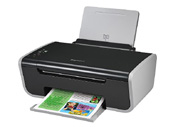
Driver for Canon MG3540, MG3550 printers driver download page. This page shows Driver for Canon MG3540, MG3550 printers driver information. Driver for Canon MG3540, MG3550 printers file include driver version 1.01 for Canon MG3500 series Printer device. If you want to find another driver for Canon MG3500 series Printer device click here. If you not found the necessary driver you can use site search. All download links are listed below on page. To start download file, click green «download» button on page below.
- Hardware IDs
- Canon MG3500 series Printer
- Driver for Canon MG3540, MG3550 printers
To start the download, select one of the servers and click "download"
|
|||
|
Version, Date:
|
1.01, 23.10.2013
|
||
|
Operation Systems:
|
Windows 8 x64, Windows 8 x32, Windows 7 x64, Windows 7 x32, Windows Vista x64, Windows Vista x32, Windows XP x32
|
||
|
|||
|
Description:
|
This is a driver that will provide full functionality for your selected model. It also allows you to set-up your printer for printing and scanning wirelessly. For an enhanced user experience we also recommend installing My Image Garden software. A version of this standard driver will have been included on the CD provided with your original product.
|
||
|
Notation:
|
Precaution:
Printer Driver: 1. With Internet Explorer 11, a web site containing Japanese may not be printed properly. In Windows Update, update the OS and Internet Explorer to the latest version. 2. If the printer driver is installed in Windows 8, and if Windows 8 is upgraded to Windows 8.1 while keeping the printer driver installed, Enable bidirectional support in the printer properties may be deselected, disabling detection of the ink level, etc. Re-install the printer driver after upgrading to Windows 8.1 and Enable bidirectional support is selected. Scanner Driver: 3.If the scanner driver is installed in Windows 8, and if Windows 8 is upgraded to Windows 8.1 while keeping the scanner driver installed, scanning from the product (by using the SCAN button) may not be available. Re-install the scanner driver after upgrading to Windows 8.1. 4. When MP Driver installation was stopped by the following acts with the screen awaiting connection, install it again. The installation is not completed even if plugged-in the USB cable again or turned-on the power supply again. - To cancel the installation. - To plugged-out the USB cable. etc, 5. The scan from the scan button of the printer does not work when the connection is changed from the network connection to the USB connection. Install MP Driver again, and change the connection method. |
||
|
Supported Devices:
|
|||
Hardware IDs: | |||

 Go Back
Advertisement

Video Instructions
This brief videos will show you how to install a driver that does not contain a setup utility.
More...